
We are Steps Charity Worldwide
Steps is the leading charity working for all those whose lives are affected by childhood lower limb conditions . Everything we do is about valuing and supporting individuals, families and carers affected by conditions which have an impact on the legs, hips or feet.
We are Steps Charity Worldwide
We don’t take walking for granted
Steps is the leading charity working for all those whose lives are affected by childhood lower limb conditions . Everything we do is about valuing and supporting individuals, families and carers affected by conditions which have an impact on the legs, hips or feet.
We are the only charity which supports the most common and much rarer lower limb conditions. Our valuable experience can help families, individuals and carers make confident and informed decisions at what can be a confusing and difficult time. How do we do it? We partner with health national systems and local communities around the world not only to raise the medical standards, care and emotional support – but also to establish them!
Call us now on +44 (0) 1925 750271
200,000
babies are born with Clubfoot worldwide each year
250,000
are born with, or develop a hip disorder each year
35,000,000
approximate number of people with a need for prosthetics/orthotics and related rehabilitation services
Steps
About Us
Every day thousands of children are affected by a serious lower limb condition. These leg conditions vary in their symptoms, frequency and prognosis. But without the correct diagnosis, treatment and support, it would be impossible for any of these children to walk properly later in life. We have created a model of true local sustainability. We partner with health national systems and communities around the world not only to raise the medical standards, care and emotional support – but to establish them! The support we provide is elevating the standards of care around the world, giving a change to everybody to walk without pain. As we like to say here at Steps, we don’t take walking for granted.
Steps
Who are we?
Steps was founded in 1980 by Sue Banton in the United Kingdom. Sue’s son Daniel was born with clubfoot and, at that time, there was limited support and medical options for families affected by the condition. She was determined to change this, not only for herself but for all the families and individuals facing the same challenges. Forty years on, her legacy is still very much alive and is reaching countries all over the world.
Latest News
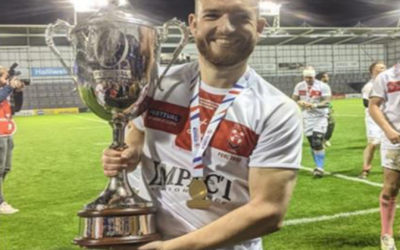
Nick’s Story
My story almost never even had a beginning, it could have been very close to just being an end. A mix up with the months of my due date all the way back in1991 led to me being born on the 20th of September rather than my early August due date. I ended up being born to...
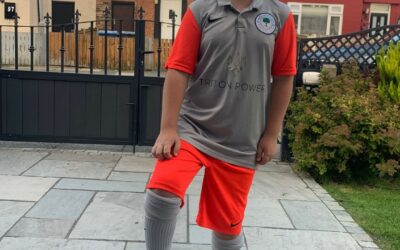
Jay’s Story
In the summer of 2020, Jay started getting pains in his leg after playing out with his friends, he was developing a limp so we knew something wasn’t right. After discussions about growing pains and possible Leukaemia we took jay to Alder Hey. He was lucky that...
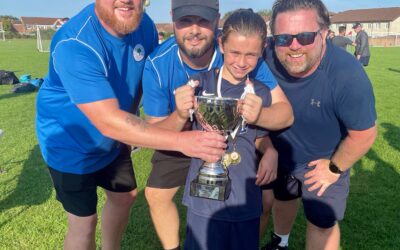
Fred’s Story
When Fred was 3 he started complaining of pains in his left leg, at first we thought he’d pulled a muscle. He was a typical 3-year-old boy running and jumping off everything. He kept complaining, sometimes of pain in his left knee, and sometimes he had a limp. We had...
Upcoming Events
Our Stories
Jay’s Story
In the summer of 2020, Jay started getting pains in his leg after playing out with his friends, he was developing a limp so we knew something wasn’t right. After discussions about growing pains and possible Leukaemia we took jay to Alder Hey. He was lucky that...
Fred’s Story
When Fred was 3 he started complaining of pains in his left leg, at first we thought he’d pulled a muscle. He was a typical 3-year-old boy running and jumping off everything. He kept complaining, sometimes of pain in his left knee, and sometimes he had a limp. We had...
Thomas’s Story
The most levelling realisation as a parent is that everybody, every child, has something going on at some point. For me, I was born with two clubbed feet in 1978. It wasn’t a total surprise when I arrived. There were no scans of course, but my mother and her sister...